Email was designed without any way to prove who sent a message. Anyone can type any address into the From line. SPF, DKIM and DMARC are three DNS records that fix this together, each covering a gap the others leave.
The three records at a glance
| SPF | DKIM | DMARC | |
|---|---|---|---|
| Question it answers | Is this server allowed to send for the domain? | Was this message signed by the domain, and is it unchanged? | Does the authenticated domain match the From address, and what should happen if not? |
| Domain it checks | The envelope sender (return path) | The signing domain (d=) | The From address people see |
| Where it lives | TXT record on your domain | TXT record at selector._domainkey | TXT record at _dmarc |
| Survives forwarding? | Usually not | Usually | If DKIM survives |
| Standard | RFC 7208 | RFC 6376 | RFC 7489 |
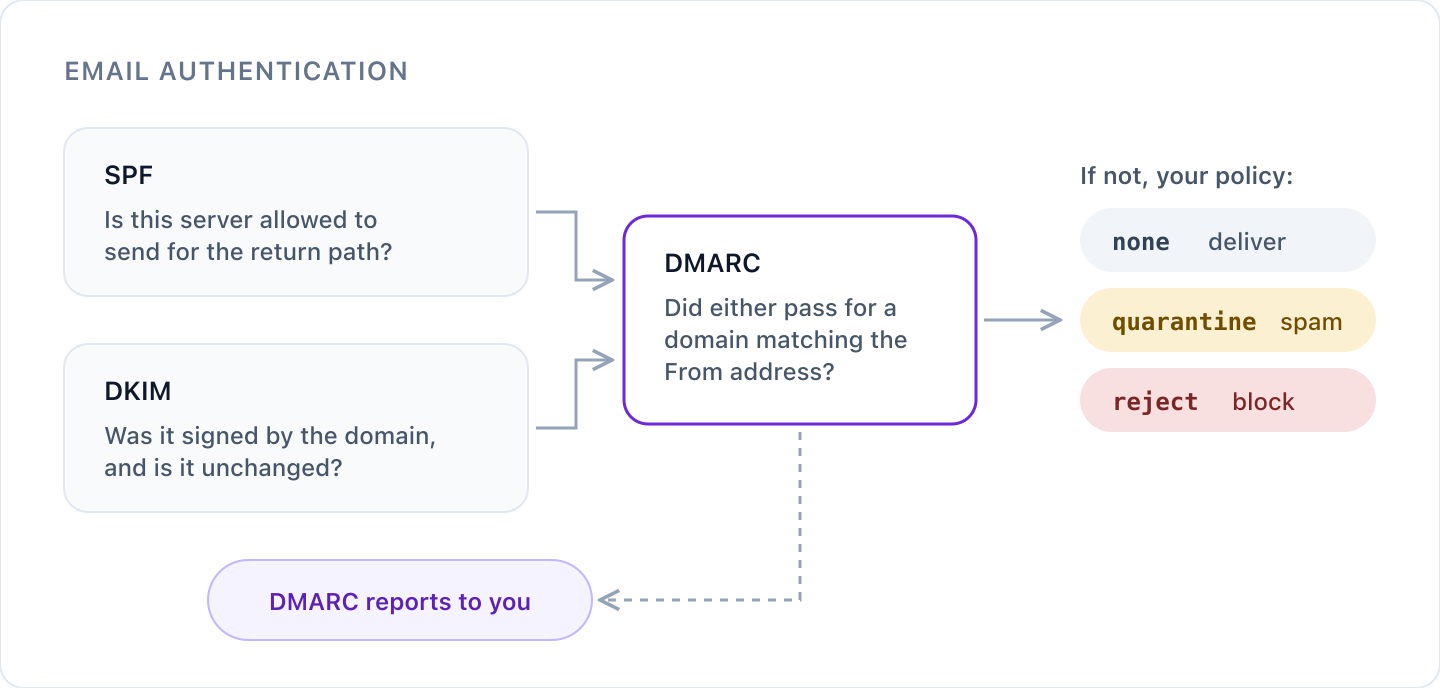
How they fit together
When a message arrives, the receiving server:
- checks SPF: is the sending server on the list for the envelope sender's domain?
- checks DKIM: does the signature verify against the signing domain's public key?
- checks DMARC: did at least one of those pass for a domain that matches the From address? If not, it applies your policy: deliver, send to spam or reject.
- records the result in the DMARC report it sends you.
You need all three. SPF and DKIM on their own don't protect your From address, and DMARC on its own has nothing to check.
Email authentication checklist
1. Find everyone who sends email as you
List every service that sends from your domain: your mailbox provider, marketing platform, CRM, helpdesk, invoicing and website forms.
DMARC reports with p=none are the most reliable way to find the ones you've forgotten.
2. Publish one SPF record
- One record per domain, starting with
v=spf1. - Stay within 10 DNS lookups.
- Remove services you no longer use.
- End with
-allonce your list is complete.
3. Turn on DKIM for every sending service
- Sign with your own domain, not the service's, so DKIM aligns for DMARC.
- Use 2048-bit keys and a separate selector for each service.
- Rotate keys regularly, and remove keys you no longer use.
4. Take DMARC to reject
- Start at
p=nonewith a reporting address. - Fix every legitimate sender until it passes and aligns.
- Move through
p=quarantinetop=reject, and make sure subdomains are covered.
5. Lock down domains that don't send email
Every domain you own can be spoofed, including parked domains. For each one that never sends email, publish:
example.com         TXT  "v=spf1 -all"
_dmarc.example.com  TXT  "v=DMARC1; p=reject"
Don't publish DKIM keys for it. If the domain doesn't receive email either, a null MX record (MX 0 ., RFC 7505) tells senders not to try.
6. Go further
- MTA-STS (RFC 8461) makes other servers use encrypted connections when sending mail to you.
- TLS-RPT (RFC 8460) sends you reports when those encrypted connections fail.
- BIMI can show your logo next to your email in supporting inboxes, once DMARC is enforced.
7. Keep watching
Email authentication drifts. People add new services, providers change their SPF includes, and keys go unrotated. Check regularly, not just once.
How Cyber Perimeter helps
Cyber Perimeter checks SPF, DKIM, DMARC, MTA-STS, TLS-RPT and BIMI on your domains every day. It reads your DMARC reports for you and tells you when you're ready to move to a stronger policy. Every problem comes with steps to fix it.
For a quick look at your domain now, try our free email security checker.
Was this article helpful?
That’s Great!
Thank you for your feedback
Sorry! We couldn't be helpful
Thank you for your feedback
Feedback sent
We appreciate your effort and will try to fix the article